Games on the Mac Act 2

Amazon delivered my 1TB WD Black NVMe drive today along with 6 sata cables with straight end connectors.  Needed to replace two of the sata cables in the Hack2 since they both have one connector end with a 90 degree bend.  That bend made it difficult to plug in the cables with how things are arranged in the case.  It was a pain in the neck installing the NVMe drive on to the motherboard.  I had to remove the wifi/bluetooth card, the video card, and the CPU cooler before I could access the NVMe slot.  But before I could remove the video card, I had to access the butteryfly locking lever on the Pci Express x16 slot and push it down.  With a long video card like my Sapphire Radeon Pulse RX 580 8GB GDDR5, it was hard to get to the locking lever.  I managed to flip the lever down to release the video card.

I formatted the new drive as APFS case insensitive.  I used Carbon Copy Cloner (CCC) 5 to clone the old drive with the new drive as the destination.  It gave me a warning that the new drive’s format didn’t match the old drive’s APFS case sensitive format.  I told it to continue with the cloning.

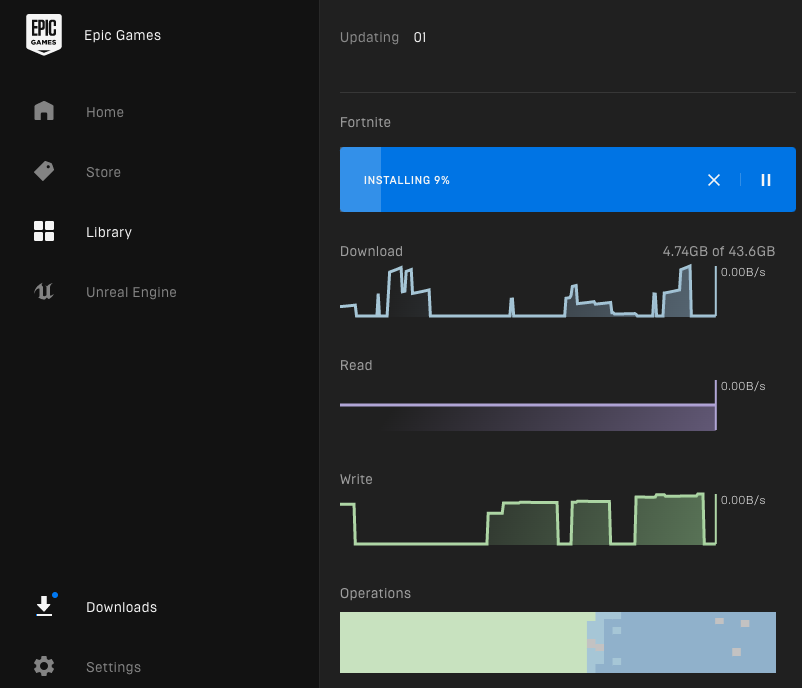
I was able to boot up using the new drive.  Then I was able to install Steam and League of Legends without getting that warning message about the case sensitivity.  I went ahead and resumed my attempt at installing Fortnite.  I didn’t have enough space to install it before. It is a large download.  It is still in the install process at this moment.

That wraps up this post.  Catch you later.

Fortnite, LOL, and Steam on the Mac

There are a few online games that I play on my Win 10 machine that I wanted to play on the Mac.  They are Fortnite, League of Legends (LOL), and Steam.  Fortnite is from Epic Games and there is also a client that runs on the Mac.  Riot Games distributes League of Legends and they have a client that runs on the Mac.  Steam has a client that runs on the Mac.

The League of Legends application starts up ok.  But there are problems with the other two.  Steam requires a case-insensitive filesystem and it won’t start.  The Epic Games launcher uses the Unreal Engine and it also needs a case-insensitive file systems.  It too doesn’t start.  While you can move the Epic Games Launcher to a drive that has a case-insensitive file system, you can’t do the same with the Steam launcher.  I tried using the Crossover (Wine) application to run the Windows Steam application.  While I was able to get it to run, the game Among Us locked up on me.  I chose APFS case-sensitive for the drive when I installed Catalina, while the default was APFS case-insensitive.  As a Unix/Linux fan, I prefer to use case-sensitive.  I am planning to upgrade the current 500G NVMe drive to a 1TB NVMe drive since I was running out of space.  Since I will be using APFS for Catalina, I could create a volume that was APFS case-insensitive and put those application there.  “Space sharing” is one feature of APFS that will allow me to create a volume without need to determine the size of the volume initially.  The volumes in the APFS container will share space.  As long as the total space used by the volumes is less than the total available space, things will work out ok.  The current drive will then become a Win 10 boot drive.  Catch you later.

Overclocking the i5-3570K

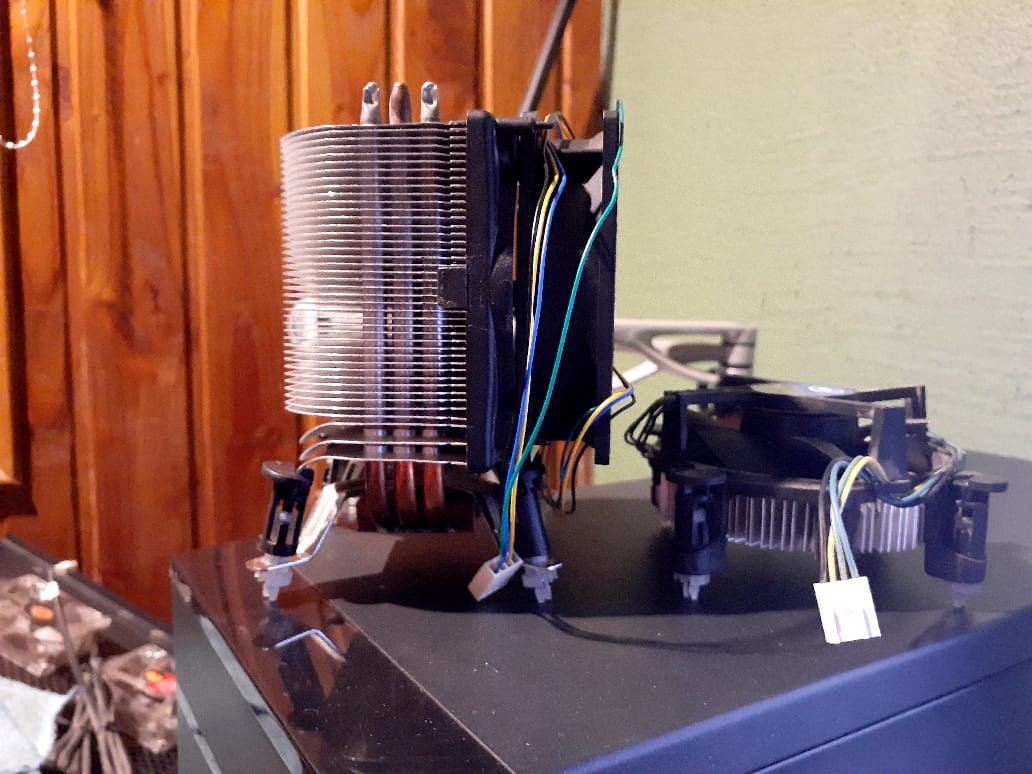
When I put together my original Hackintosh, I planned on overclocking the i5-3570K but never did.  The K CPU units are unlocked so they can be overclocked.  Now that my new Hackintosh is fully functional, I have reassigned the original Hackintosh to other duties.  I  put a hard drive containing Win 10 Pro into the system.  I had previously installed a copy of Win 10 Pro on this drive while it was attached to this system.  I am going to run Win 10 Pro for a while.  I still haven’t decided on whether or not I will make the system into a ProxMox box.  But in the mean time I am going to overclock the i5-3570K in the system.  One of the first things I did was to replace the stock Intel CPU cooler with something more substantial.  The Artic cooler is on the left and the stock cooler is on the right.

The fan on the Artic cooler howled and needed to be replaced.  I was able to mount a 92mm fan onto the cooler’s shroud.  This is the second time I had to replace the fan.  I have had the Artic unit for more than 10 years.  I also managed to break two of the mounting pins and had to get two mounting pins from the original cooler.  I really don’t like how the mounting assembly was designed.  If I have to remove the fan in the future, I will look into getting an adapter bracket to make the cooler mounting easier.

For my research on overclocking, I looked at a few videos where they overclocked an i5-3570K.  Linus Tech Tips had a good one and so did Jay Z Two Cents.  Plus there were a few more that I Iooked at.  In preparation for the overclocking event, I gathered a few of their recommended programs (plus a few others that I found): Cinebench, Prime95, OCCT, CPU-Z, CPUID HWMonitor, GeekBench5 (free version), IntelBurn Test, and RealTemp.  I will probably not use them all, but you never know.  To get a baseline before I started overclocking I ran GeekBench5.  The report that GeekBench5 generates is quite nice.  For my baseline I will use the Single-Core Score which was 805 and the Multi-Core Score which was 2625.  I also ran Cinebench to see what numbers that came up with.  The CPU Multi-Core was 2783 and the CPU Single-Core was 752.  The MP ratio was 3.70 x.

The two settings that I changed in my computer’s BIOS were the CPU Ratio (the multiplier) and the CPU Core Voltage.  The initial values were 34 for the CPU Ratio and 1.350V for the CPU Core Voltage.  First I increased the CPU Ratio by 2 to give me 34.  Saved the changes and rebooted into Windows.   Once in Windows I ran IntelBurn Test to check the stability of the overclocking.  I eventually increased the CPU Ratio to 42.  After getting to that point I then reduced the CPU Core Voltage by increments of 0.050V.  After each time I did that I would run IntelBurn Test to check the stability. I did that until I reached a CPU Core Voltage of 1.200V.  While I was running the IntelBurn Test, I also ran CPUID HWMonitor to look at the temperatures of the CPU cores and also the CPU usage.  The last run of GeekBench5 netted me values of 895 for the Single-Core Score and 3015 for the Multi-Core Score.  The last run of Cinebench gave me a CPU Multi-Core of 3172 and a CPU Single-Core of 835.  The MP ratio was 3.80 x.

While the numbers look good, there are some other numbers that aren’t so great.  The core temps are getting too high during the IntelBurn test. 🙁  The temperatures hit 105C for the highest overclocked settings that I used.  For the default settings the temperatures were in the low 80C range, which is probably a bit too hot.  The CPU might have a thermal transfer issue where the conductivity between the actual CPU and its lid is poor.  While I am tempted to do it, I am not going to go through the effort of delidding the CPU and applying liquid metal.  It is not worth it for this scenario.  So I have increased the CPU ratio to 40 and set the voltage at 1.100V.  Those setting only raises the core cpu temperatures a little more than what they are with the stock settings.  The default settings has the CPU ratio at 34 and the voltage at 1.035v.  The max temperatures for the default settings under the IntelBurn Test were 80c for core 0, 85c for core 1, 84c for core 2, and 82c for core 3.  The max temperatures for my overclocked settings under the IntelBurn Test were 84c for core 0, 88c for core 1, 88c for core 2, and 84c for core 3.  That’s it for this post.  Catch you later.


Hyper-V

Yet Another Virtualization Platform!  Hyper-V is Microsoft’s entry in the virtualization market.  It is a competitor to VMware’s Fusion and Oracle’s VM VirtualBox.   I have used both of these other products in the past and I still use VirtualBox from time to time.  Hyper-V is available in three versions.  There is Hyper-V for Windows Servers, Hyper-V Servers, and Hyper-V on Windows 10.  Hyper-V for Windows Servers is an add-on to the Windows Server OS.  Hyper-V Servers is a standalone solution .  Hyper-V on Windows 10 is the version that you can run on your laptop or desktop computer.  I have installed it on my Win 10 laptop and it works well.  I am currently doing an install on a Windows 10 desktop computer.  Well actually there isn’t any software to install.   Hyper-V is built into Windows 10 as an optional feature so there is no Hyper-V download.

There are a few requirements that you need to check off before you can use Hyper-V.   You must be running Windows 10 Enterprise, Pro, or Education.  It cannot be installed on Windows 10 Home.  If you have Windows 10 Home, you must upgrade to Windows 10 Pro.  You need to have a 64-bit Processor with Second Level Address Translation (SLAT).  You need CPU support for VM Monitor Mode Extension (VT-c on Intel CPUs).  You must have a minimum of 4 GB memory in your system.  While 4 GB is the minimum, having 8 GB to 16 GB would be better.

After you have determined that your computer meets the requirements for using Hyper-V, you can enable Hyper-V on your computer.  You can do the from the command line (cli) or from the control panel.  I am just going to talk about using the cli.  You can search on how to enable Hyper-V in the control panel.

There are basically two commands that you run to enable Hyper-V.  Run a PowerShell command as Administrator.  Make sure you do it as Adminstrator or it won’t work.  Enter the following command:

Enable-WindowsOptionalFeature -Online -FeatureName Microsoft-Hyper-V -All

When the installation has completed, reboot.  Once the computer has rebooted and we are logged in, we will open up a PowerShell command as Administrator again.  We will want to enable Hyper-V with the Deployment Image Servicing and Management tool (DISM).  DISM helps configure Windows and Windows images. Among its many applications, DISM can enable Windows features while the operating system is running.

In our PowerShell we will type in the following command:

DISM /Online /Enable-Feature /All /FeatureName:Microsoft-Hyper-V

At this point Hyper-V has been enable and is ready for us to use.  But first we have to create a virtual environment.  Open Hyper-V Quick Create from the windows start menu.  Once the Hyper-V Quick Create application has started, you can select an operation system from the menu or you can chose your own by selecting the Local installation source.  Then you will press the Create Virtual Machine button in the application.  After the virtual environment has been created, open Hyper-V Manager from the windows start menu.  This application will allow you to configure your virtual environment and also start it.  That’s about all there is to it.  For Windows users, Hyper-V allows you to experiment with other operating system in a familiar environment.


OpenCore and the Hackintosh II

My original Hackintosh is still up and running.  The big problem is that it is stuck at OS X 10.11.6 (El Capitan) along with my real Apple products (Mac Mini circa 2009 and Mac Book Pro from late 2007).  So that’s been almost 5 years since 10.11.6 was released.  And it has been 4 and a half years since OS X 11.12 (Sierra) was released.  In order to make it to OS X 10.15 and beyond I figured I would build one more Hackintosh.  Which will mostly likely be my last one due to Apple moving to ARM chips.  The Hackintosh is effectively dead.

My first Hackintosh had the following components:

CPU: i5-3570K (Ivy Bridge 1155 socket)
Memory: DDR3 1600 – 20GB Total
Graphics: NVIDIA GeForce GTX 650 2048MB
Motherboard: QUO Z77MX-QUO-AOS (made by Gigabyte)

The motherboard was from QUO Computer’s projectQ Kickstarter from 2013.   There was a lot of bad blood over this Kickstarter.  I backed “THE CONNECTED BY DEMAND” pledge level for $289.  While I got my board, they failed to include the wifi/bluetooth card with it.  No t-shirt either.  From the comments section on the Kickstarter, I saw that I wasn’t the only that didn’t receive the wifi/bluetooth card.  Also some of the boards were never delivered.  The big losers were the people who backed at the complete systems level which were the most under delivered rewards.  A number of people lost a good bit of money (up to $2500USD) backing the project.

I plan on making a ProxMox Box out of my original Hackintosh system components.  I will upgrade the video card to GTX 950 I have available.  The website TonyMacX86 was the place that I visited to research while building my original Hackintosh.  Looking at the Buyer’s Guide Section I was able to choose the components that would increase my chances of success.  The Installation Guide section provided the information that helped me to successfully create my original Hackintosh using Clover as the bootloader.

Once again I consulted with TonyMacX86 and looked at their Buyer’s Guide Section to pick out the components that I would be using.  The following components are going into my second build:

Motherboard: Gigabyte Z390 M Gaming – MicroATX LGA 1151
CPU: Intel Core i9-9900K (Coffee Lake)
Fan Cooler: Noctua NH-D15                                                                                          Graphics: Sapphire Radeon Pulse RX 580 8GB GDDR5
Memory: DDR4 3200MHz CL16 SDRAM (1 stick of 32GB)                                    Case Fans: Noctua NF-P14
SSD: WD_Black SN750 500GB NVMe
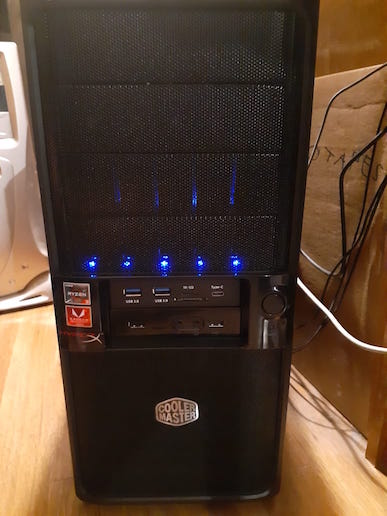
Case: AZZA – CSAZ-310DH
Wifi/Bluetooth Card: Fenvi FV-T919 (Suitable for Hackintosh)

For the boot-loader on this second build I went with OpenCore instead of using Clover.  This time I did not use the TonyMacX86 website for build instructions.  They do have info on using OpenCore, but I turned to YouTube for my build instructions this time.  There were quite a few videos available.  The video that I went with is from the Chris Titus Tech channel.  The particular video is called “Install macOS on any PC | OpenCore Guide”.  He uses a Linux Mint Live (LML) system to create the boot USB.  I happened to have a portable drive with Ventoy and a LML system was one of the systems available on it.  I mentioned Ventoy before in my post on WinPE.  For the most part the video is pretty good.  He had to install Python on his LML system, but I already had Python3 on mine.  The SSDDTTime.py script he used was older that the version that I downloaded.  There were only 4 options on the menu while the newer version had 8 options.  It was easy enough to figure out.  The ProperTree.command (python) script worked well.

I was finally able to successfully boot up into the OS X install.  It took me a while to figure out my problems.  Probably the biggest issue I had was that I needed to adjust some Bios settings.  Here is a list that I followed.  I couldn’t find all of these settings in my Bios, but I did set the majority of them.

Disable
Fast Boot
VT-d (can be enabled if you set DisableIoMapper to Yes/TRUE)
CSM
Intel SGX
Intel Platform Trust
Enable
VT-x
Above 4G decoding
Hyper-Threading
Execute Disable Bit
EHCI/XHCI Hand-off
OS type. (Windows 10 Features Other)

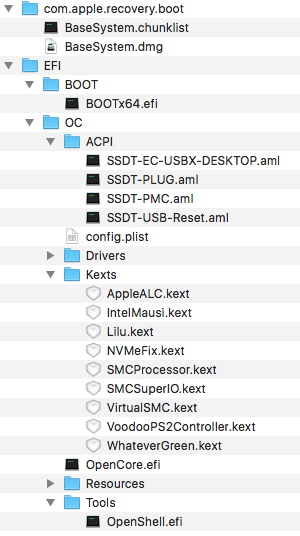
When I finished, the files in my OpenCore USB boot looked like this:

After I booted up into the installer, I had to format my NVMe drive.  Since I was installing OS X 11.15 on it, I was forced to use  APFS (I choose Case Sensitive).  Following the steps in the video, I moved the EFI folder on my USB boot to my NVMe drive.history.

There are two ways you can move the EFI folder on your USB boot drive to your new drive.
1. get and use the MountEFI script that is mentioned in the video:
$ chmod +x MountEFI.command
$ ./MountEFI.command
Follow the steps in the video for using the MountEFI script.
2. Or you can use these commands in the terminal:
$ diskutil list
$ sudo mkdir /Volumes/EFI
$ sudo mount – t msdos /dev/disk0s1 /Volumes/EFI
$ cp ./OPENCORE/EFI /Volumes/EFI

While I wanted to use Migration Assistance to move my files from my original Hackintosh to my new Hackintosh, I couldn’t use it.  The reason is that my original drive is not APFS while the new drive is.  So I am not allowed to migrate the files.  Trying out EaseUS ToDo Back for the Mac.  I made a backup of a number of folders on my original Hackintosh.  I restored those backed up folders to my new Hackintosh one folder at a time, starting with the Applications folder.  Then I did the rest that I had backed up.  My Thunderbird application started up and all of my mail was there.  Firefox had all of my settings and so did the majority of the other applications.  There were a number of applications that I had to update in order for them to run under OS X 10.15.

The last thing I needed to do was to check on the Fenvi FV-T919 wifi/bluetooth card to see if it was working properly.  I already knew that the wifi was working, but I hadn’t check on its bluetooth capability.  Well bluetooth wasn’t working.  I was sure that I  plugged in the cable from the Fenvi to the onboard usb so the BT should work.  Well I looked in the computer through its glass side panel and it seemed that I did not plug in the cable.  🙁  After shutting down the computer, I removed the side cover so I could plug in the cable.  I reinstalled the side cover and started the computer up.  The Bluetooth was working finally.  The FV-T919 works in my hackintosh without needing any drivers as promised.

Next thing on my list is to overclock the CPU.  I will save that for another post.


FreeNAS is now TrueNAS Core

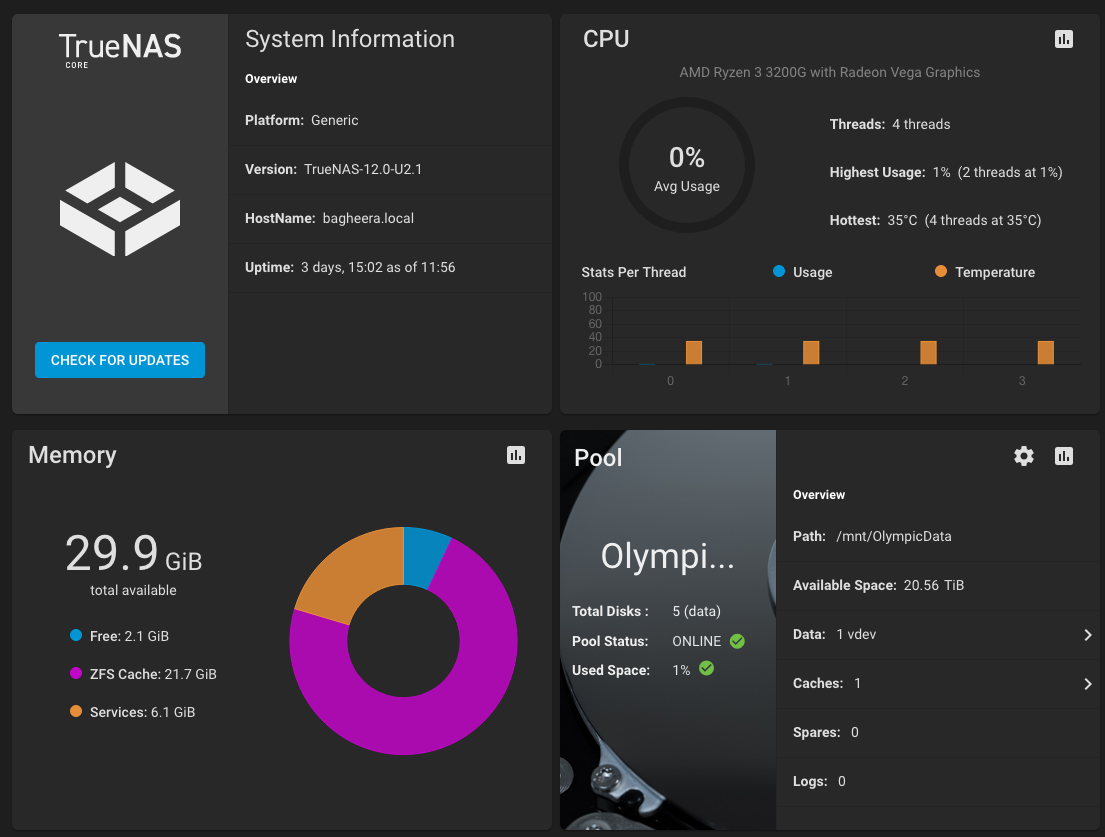
Back in November 2020, I updated up my FreeNAS to release 11.3-U5 in preparation to the upgrade to release 12.0.  A few tabs on the menu didn’t work.  The Accounts with Group and Users tab was one them.  After I upgraded to release 12.0, the tabs were working again.

As of this 12.0 release, FreeNAS is now known as TrueNAS Core.  I won’t go into the details of the name change but here is a link that has that info.

Currently I am running release 12.0-U2.1 and everything is running well.

Proxmox Virtual Environment

I am in the planning stages of setting up a Proxmox Box.  So this is a very brief introduction to the ProxMox Virtual Environmen (VE).

So what is Proxmox VE?  Proxmox VE is an open-source server management platform for your enterprise virtualization. It tightly integrates KVM hypervisor and LXC, software-defined storage, and networking functionality on a single platform. With the integrated web-based user interface you can easily manage VMs and containers, highly available clusters, or the integrated disaster recovery tools with ease.

So are virtualization platforms like Proxmox VE the future of computing?  I would say that they are.  I have been using VMWare and VirtualBox for a number of years now and I have really liked being able to start up different computing environments on the same machine.


OpenVPN in the Digital Ocean Cloud

Needed to use OpenVPN for a small project.  I have an account with the cloud infrastructure provider Digital Ocean (DO) and OpenVPN has an image in the market place that you can use to create an OpenVPN access server.  OpenVPN also provides this quick start guide with detailed steps.  The guide takes you from creating a Droplet through configuring your OpenVPN access server.  A Droplet is what DO calls their virtual machine instances.  You can create different Droplets depending on what your requirements are.  And they say you can create a droplet in just 55 seconds!  I never timed how long it took to create a droplet, but it was fast.

But in addition to following the OpenVPN quick start guide, I wanted to explore how you can create the OpenVPN access server with a few variations in the steps by using the DO API via the command line.  I am doing this on OS X.  It also works on a Windows 10 laptop with WSL2 that is running an instance of Ubuntu 20.04.  So it should work on full Linux distro too.  Please note that while the examples work, you might have some issues with copy and pasting them.  In the curl commands you will see single and double quotes being used.  The single quotes don’t allow for variable substitution, so double quotes are used. The inner double quotes must then be escaped by using a \ in front of them like this \”.

The first step is to create a new API access token or use one of your existing access tokens.  You can’t use the DO API to create an access token.  You will have to create the access token online following the steps in the link above.  Make sure that you keep your access tokens secret.  After you have an access token, then you can use the API to create your Droplet.  There are a number of language bindings for the API, but I am going to use curl commands for all my examples.  Note that you’ll need to either save your API access token to an environment variable (TOKEN) or substitute it into your curl commands.  Here is an example (this is not a real token).  Please note that the $ sign is the command prompt.   It is used in all of the examples.

$ export TOKEN=77e027c7447f468068a7d4fea41e7149a75a94088082c66fcf555de3977f69d3

1. Create a new ssh key pair with ssh-keygen if you don’t have one, else skip this step.

Open a terminal and run the ssh-keygen command.  While a lot of examples use rsa (ssh-keygen -t rsa), it is best practice today to go straight to ed25519.

$ ssh-keygen -t ed25519

You will prompted with a few questions as you create the key pair.  First you will be asked to enter the name of the file to save the key into.  I just hit return to use the default.

Generating public/private ed25519 key pair. 
Enter file in which to save the key (/Users/USER/.ssh/id_ed25519):

Next you will be asked to create and confirm a passphrase for the key.  While it is highly recommended, it’s optional to use a passphrase.  But using a passphrase does have a plus.  If your passphrase-protected private key falls into an unauthorized user’s possession, they won’t unable to use it to log on to your account until they figure out the passphrase.  Thus giving you some extra time. The only downside to having a passphrase, is you have to type it in each time you use your ssh key pair.

Enter passphrase (empty for no passphrase):
Enter same passphrase again:
Your identification has been saved in /Users/martin/.ssh/id_ed25519.
Your public key has been saved in /Users/martin/.ssh/id_ed25519.pub.
The key fingerprint is:
SHA256:JD5gQbTjflChPEDZm1AEMlWGFbQX4nTqBQicEgeClko martin@Quos-Mac-Pro.local
The key's randomart image is:
+--[ED25519 256]--+
|X*O#/.+ |
|+E=*.X o |
|= .%o= . |
|. +oO o |
| + o S |
| . . . |
| . . |
| . |
| |
+----[SHA256]-----+

Running ssh-keygen generated two files.  Since I used the default, they are called id_ed25519 and id_ed25519.pub.  Next we will add this public ssh key to the DO account.  If you have been using Unix/Linux for more than a few years, you probably notice that the key fingerprint looks different.  The fingerprint used to be presented in a semicolon delimited sequence that looked like this.

39:38:77:25:db:16:db:fc:9d:a9:08:a6:8f:92:48:99

This is because the default fingerprints are shown as SHA256 sequences now, and before the were MD5 sequences.

In order to show the SSH fingerprint using MD5,  enter this command.  Note that $HOME is set to be the default home directory for the current user.

$ ssh-keygen -l -E md5 -f $HOME/.ssh/id_ed25519
256 MD5:39:38:77:25:db:16:db:fc:9d:a9:08:a6:8f:92:48:99 martin@Quos-Mac-Pro.local (ED25519)

2. Load the ssh key you created into your DO account.  First I saved the public ssh key to an environment variable called My_PubKey

$ export MY_PubKey=`cat ~/.ssh/id_ed25519.pub`

Then I ran this curl command to load the public key into my DO account.  Note that I am using the environment variables TOKEN and MY_PubKey that I defined prior to running the command.

$ curl -X POST \
-H "Content-Type: application/json" \
-H "Authorization: Bearer $TOKEN" \
-d "{ \"name\":\"My_OV_SSH_PublicKey\" ,\"public_key\":\"${MY_PubKey}\"}" \
"https://api.digitalocean.com/v2/account/keys"

3. Get the id of the ssh key from the output of your curl command after it has been run.  You can get all the public ssh keys defined on your DO account with this curl command:

$ curl -X GET -H "Content-Type: application/json" \
-H "Authorization: Bearer $TOKEN" \
"https://api.digitalocean.com/v2/account/keys"

Here is the output from the command to list all of the ssh keys in your account.  I didn’t have any before, so there is one the one I just created.  You can see the id is 9999999.

{"ssh_key":{"id":9999999,"fingerprint":"39:38:77:25:db:16:db:fc:9d:a9:08:a6:8f:92:48:99","public_key":"ssh-rsa AAAAB3NzaC1yc2EAAAADAQABAAABAQDRPKgXSZucXuGvl2h8smotrFKfSwUVajJqltfc/m/SYx2lDtABrqrpk0XwmTXPhLtDxsYDx59NqX/KIjMurhp1Ril60uNn8x3GosLhW6nWMpPhs/Thcr0rK95eV/Kzx/ZiLKc8ZPbDV2laa71nmxEX0rK/f9c9g2lnT/f8926uPEGsqeA3Z3mZ4vZixJaQ1ISqZ7GfC8OBNpwLLfqXVVrhVzQRUNYEnCsZ2LEpbYjtTO1kqgMqjsfEeQEjmLEOr03J5uml9LfAUKlcPaI07NLAv5gVYbcITO07ZOtnoglCaLfgE0DGC6zx8LwqKFgHzHirU+lAD83DuBH+fPQTZJWZ martin@Quos-Mac-Pro.local","name":"My_OV_SSH_PublicKey"}}

4. Create a droplet with this curl command.  Replace the 9999999 in the curl command with the id of your ssh key that you are going to use.  This is not the fingerprint or the public_key.

$ curl -X POST "https://api.digitalocean.com/v2/droplets" \
-d'{"name":"My-OpenVPN-Droplet1","region":"nyc3","size":"s-1vcpu-1gb","image":"openvpn-18-04","ssh_keys":[9999999],"backups":false,"user_data":null,"private_networking":null,"volumes": null,"tags":["awesome"]}' \
-H "Authorization: Bearer $TOKEN" \
-H "Content-Type: application/json"

At this point you can list the Droplets you have in your DO account.  Use this curl command to do so.

$ curl -X GET -H "Content-Type: application/json" \
-H "Authorization: Bearer $TOKEN" \
"https://api.digitalocean.com/v2/droplets?page=1&per_page=1"

5. Connect to the Open VPN access server via ssh and configure.

$ ssh root@xxx.xxx.xxx.xxx

The OpenVPN Access Server Setup Wizard runs automatically upon your initial login.  One of the things that you will be asked for is the OpenVPS access server license key.  If you are testing out the product, OpenVPS recommends that you leave this blank.  The access server will allow two connection for free by default.  A fixed license key can be activated at any time.  You can get a free account with OpenVPN that will allow you to have 2 access keys for free.  See OpenVPN’s website.

You can activate the license key from your Droplet’s OpenVPN Web Interface or by the command line when logged on as the root user.  When activating the license key on the command line, you must be in the /usr/local/openvpn_as/scripts/ folder where the CLI tools for Access Server are located.

Activating a new license key:

$ ./liman Activate "LICE-NSEK-EYIN-HERE"

Show the current licensing state, and any possible problems with license keys:

$ ./liman info

After completing your configuration selections, you will need to define the password for your “openvpn” user as your final step before going to the Admin Web UI. Please note that if you specified a custom Admin UI username instead of the default ‘openvpn’ user account, you should use that username you entered instead.  Set the openvpn password with this command.

$ sudo passwd openvpn

6. Disable the password for the root login.  It is a good idea to do this.  You can restrict the root login to only be permitted via SSH keys.

First edit the SSH config file.  In my example I am using the Vi or rather Vim editor to edit the config file.  Another editor to use  is nano.  It has a menu at the bottom of the edit screen that will be helpful.

$ sudo vi /etc/ssh/sshd_config

Inside the sshd_config file, find the line that has PermitRootLogin on it and then modify it to be like this to ensure that users can only connect using their SSH key.

PermitRootLogin without-password

Save and close the file when when you are done.  To put these changes into effect you will need to reload the sshd service.

$ sudo systemctl reload sshd.service

You can look at the status of the sshd service by entering this command.

$ sudo systemctl status sshd.service

The status output will look like this.   You will have to do a ctrl-c to exit the status output.

● ssh.service - OpenBSD Secure Shell server
Loaded: loaded (/lib/systemd/system/ssh.service; enabled; vendor preset: enabled)
Active: active (running) since Mon 2020-08-17 23:49:26 UTC; 7min ago
Process: 11975 ExecReload=/bin/kill -HUP $MAINPID (code=exited, status=0/SUCCESS)
Process: 11974 ExecReload=/usr/sbin/sshd -t (code=exited, status=0/SUCCESS)
Main PID: 1176 (sshd)
Tasks: 1 (limit: 1151)
CGroup: /system.slice/ssh.service
└─1176 /usr/sbin/sshd -D

Aug 17 23:49:54 My-OpenVPN-Droplet1 sshd[1684]: Disconnected from authenticating user root 112.85.42.186 port 26900 [pre
Aug 17 23:51:22 My-OpenVPN-Droplet1 sshd[5427]: Accepted publickey for root from 201.220.115.136 port 61324 ssh2: RSA SH
Aug 17 23:51:22 My-OpenVPN-Droplet1 sshd[5427]: pam_unix(sshd:session): session opened for user root by (uid=0)
Aug 17 23:52:40 My-OpenVPN-Droplet1 sshd[11952]: Received disconnect from 222.186.190.14 port 51102:11: [preauth]
Aug 17 23:52:40 My-OpenVPN-Droplet1 sshd[11952]: Disconnected from authenticating user root 222.186.190.14 port 51102 [p
Aug 17 23:56:41 My-OpenVPN-Droplet1 systemd[1]: Reloading OpenBSD Secure Shell server.
Aug 17 23:56:41 My-OpenVPN-Droplet1 sshd[1176]: Received SIGHUP; restarting.
Aug 17 23:56:41 My-OpenVPN-Droplet1 sshd[1176]: Server listening on 0.0.0.0 port 22.
Aug 17 23:56:41 My-OpenVPN-Droplet1 systemd[1]: Reloaded OpenBSD Secure Shell server.
Aug 17 23:56:41 My-OpenVPN-Droplet1 sshd[1176]: Server listening on :: port 22.
lines 1-20/20 (END)
root@My-OpenVPN-Droplet1:~#

You might not have realize it, but OpenVPN is built on OpenBSD and they are serious about security.  OpenSSH also comes from the OpenBSD group.

7. Now you need to use the OpenVPN web interface to define users that can access the VPN.  The URL will be dependent on your OpenVPN Droplet’s IP address or a defined hostname (example: https://123.45.67.89:943/admin/).

When you first login, you will see an SSL certificate warning which is normal.  You can override it.  Here are more details about the SSL certificates from OpenVPN.

Login with the “openvpn” user.  I hope you remembered the password that you set.  Next add users in the User Permission table and other setting.  Note that you don’t have to add users to the Ubuntu instance that is hosting OpenVPN.

8. You can now start using your OpenVPN Access server.  The  URL will be dependent on your OpenVPN Droplet’s IP address or a defined hostname (example: https://123.45.67.89:943/).

9. After a while you might need to delete the OpenVPN Droplet that you created.  There are two ways you can do that using the curl on the command line.  One way is by its ID.  Here is the command to do that.  Substitute your Droplets ID with the 999999999 in the command

$ curl -X DELETE -H "Content-Type: application/json" \
-H "Authorization: Bearer $TOKEN" \
"https://api.digitalocean.com/v2/droplets/999999999"

The second way is by its Tag Name.  You might not have noticed but when I initially created the Droplet, I gave it a tag name of awesome.  If you had created a group of Droplets that you gave the same tag name to, like a tag name of awesome.  You can delete all of the Droplets at the same time using this curl command.

$ curl -X DELETE -H "Content-Type: application/json" \
-H "Authorization: Bearer $TOKEN" \
"https://api.digitalocean.com/v2/droplets?tag_name=awesome"

10. If you need to delete/destroy the ssh pub key that you added to your DO account, this is the command you would enter.  Remember to substitute your ssh key id with the 555555 below.

$ curl -X DELETE -H "Content-Type: application/json" \
-H "Authorization: Bearer $TOKEN" \
"https://api.digitalocean.com/v2/account/keys/555555"

11. You can include and then run a command in your droplet creation step.  I will save that exercise for another blog post.

Well that wraps it up.  I might piece together a bash script that incorporates the various curl commands.  Remember that a Droplet can still cost you money.  If you aren’t using it, then delete it.  It doesn’t take that long to create another one.  Catch you later.


WinPE

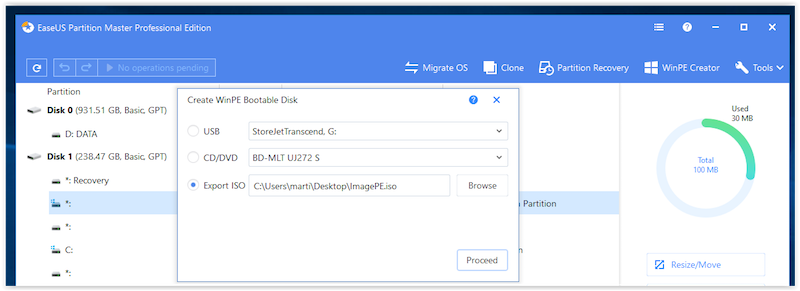
Recently I needed to fix the mbr of a WinXP system and also clone the drive. I had used the free version of EaseUS Partition Master before to do this and had good results with the utility. I went ahead and purchased the latest Pro version (currently version 14.5) of the utility. In the main widow of the Pro version there is a selection for “WinPE Creator” in the top menu. It was something that I wasn’t familiar it, as it is not present on the free version. WinPE can be thought of like a more powerful MS-Dos boot disk. The PE in WinPE stands for Preinstall Environment. You can use it for a tasks such as troubleshooting a Windows system, performing recovery operations, running third party utilities (like EaseUS Partition Master), and also installing the Windows operating system. You can’t use WinPE long term as it stops after 72 hours of use. So it is good for those times of emergency when you need to fix something on your Windows box.

I was able to create a bootable WinPE environment that had EaseUS Partition Manager on it. While looking more into WinPE, I came across a handy WinPE creation tool called AOMEI PE Builder. It creates a bootable WinPE environment along with a number of portable tolls and drivers. During the creation of the WinPE environment you can add in some of your own portable applications. There is a size limit to how much you can add and have the environment startup ok. I was able to add EaseUS Data Recovery Wizard to the WinPE environment but I was not able to add EaseUS Partition Manager. Not sure what the issue is, but a partition manager tool is included in the AOMEI PE build environment.

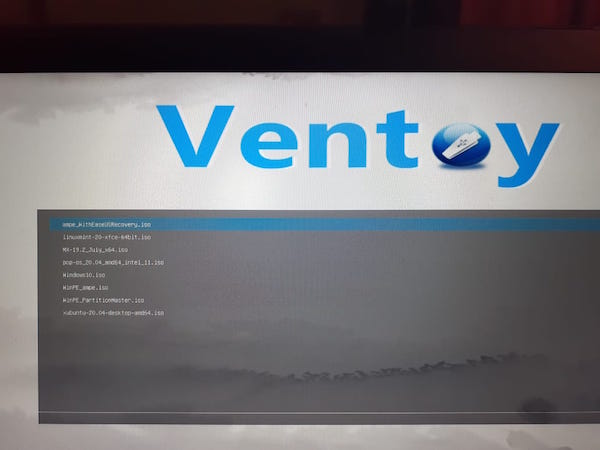
From researching the single boot creation utilities, I ran into a number of multiboot utilities. An easy one to use is Ventoy.  You just run Ventoy which creates a bootable USB drive and then you drag and drop your ISO files on to your USB drive. Reboot and make sure your USB drive is chosen in your computer’s BIOS as the drive to boot up with.  Ventoy comes up with a menu that has your ISO files as selections. I was able to include a number of Linux distributions and I also included the WinPE ISO that I created with EaseUS Partition Master earlier. Worked pretty well.

Links to utilities in post:

EaseUS Partition Master  https://www.easeus.com/partition-manager/

AOMEI PE Builder   https://www.ubackup.com/pe-builder.html

Ventoy   https://www.ventoy.net/en/index.html