
Recently I needed to fix the mbr of a WinXP system and also clone the drive. I had used the free version of EaseUS Partition Master before to do this and had good results with the utility. I went ahead and purchased the latest Pro version (currently version 14.5) of the utility. In the main widow of the Pro version there is a selection for “WinPE Creator” in the top menu. It was something that I wasn’t familiar it, as it is not present on the free version. WinPE can be thought of like a more powerful MS-Dos boot disk. The PE in WinPE stands for Preinstall Environment. You can use it for a tasks such as troubleshooting a Windows system, performing recovery operations, running third party utilities (like EaseUS Partition Master), and also installing the Windows operating system. You can’t use WinPE long term as it stops after 72 hours of use. So it is good for those times of emergency when you need to fix something on your Windows box.

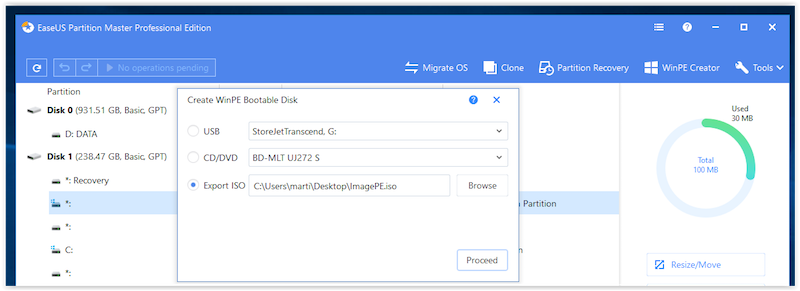
I was able to create a bootable WinPE environment that had EaseUS Partition Manager on it. While looking more into WinPE, I came across a handy WinPE creation tool called AOMEI PE Builder. It creates a bootable WinPE environment along with a number of portable tolls and drivers. During the creation of the WinPE environment you can add in some of your own portable applications. There is a size limit to how much you can add and have the environment startup ok. I was able to add EaseUS Data Recovery Wizard to the WinPE environment but I was not able to add EaseUS Partition Manager. Not sure what the issue is, but a partition manager tool is included in the AOMEI PE build environment.
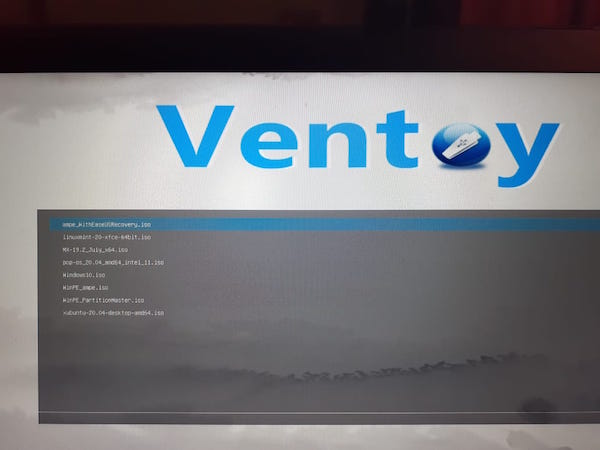
From researching the single boot creation utilities, I ran into a number of multiboot utilities. An easy one to use is Ventoy. You just run Ventoy which creates a bootable USB drive and then you drag and drop your ISO files on to your USB drive. Reboot and make sure your USB drive is chosen in your computer’s BIOS as the drive to boot up with. Ventoy comes up with a menu that has your ISO files as selections. I was able to include a number of Linux distributions and I also included the WinPE ISO that I created with EaseUS Partition Master earlier. Worked pretty well.
Links to utilities in post:
EaseUS Partition Master https://www.easeus.com/partition-manager/
AOMEI PE Builder https://www.ubackup.com/pe-builder.html